
How to Use the Image Studio
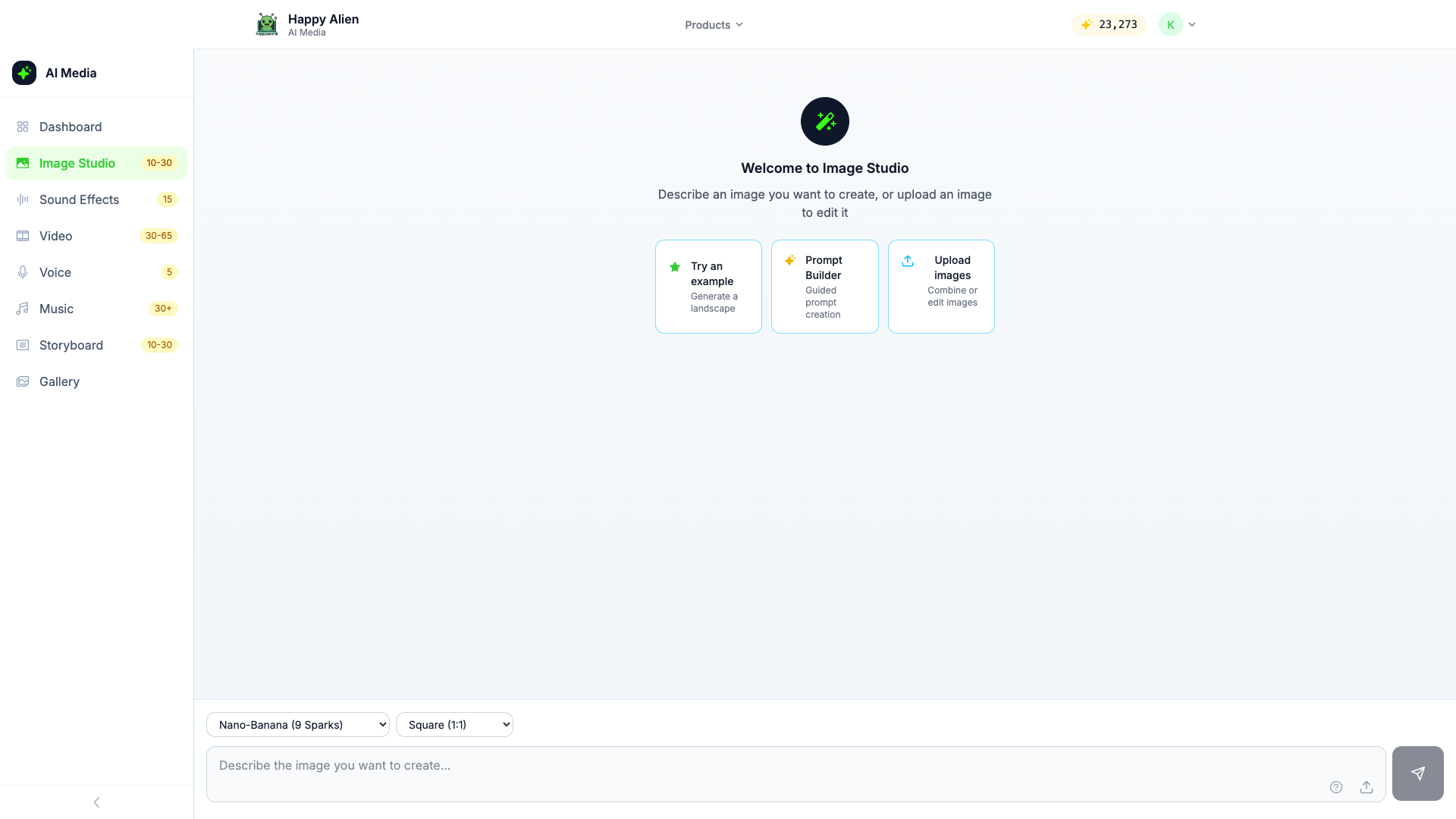
Image Studio is the AI image generation tool inside AI Media Studio. Describe what you want, and it creates the image using one of several AI models.
Getting There
Go to media.happyalien.ai/images and sign in. You'll see the Image Studio interface with a text prompt at the bottom.
Creating an Image
- Type a prompt — Describe the image you want in the text field at the bottom. Be specific: "A professional woman presenting at a whiteboard in a modern office" works better than "woman at work."
- Choose a model — Select from the dropdown on the left:
- Nano-Banana (9 Sparks) — Fast, good for general images
- Imagen Fast (8 Sparks) — Quick generation, Google's model
- Imagen Standard (10 Sparks) — Better quality, Google's model
- Imagen Ultra (12 Sparks) — Highest quality from Google
- GPT-Image-1 (12 Sparks) — OpenAI's image model
- GPT-Image-1.5 (12 Sparks) — Newer OpenAI model
- Nano-Banana Pro (12 Sparks) — Enhanced version
- Choose aspect ratio — Select from the dropdown: Square (1:1), Portrait (3:4), Landscape (4:3), Tall (9:16), Wide (16:9)
- Click the send button (arrow icon) to generate
Quick Start Options
On the welcome screen, you'll see three shortcuts:
- Try an example — Generates a sample landscape image so you can see the tool in action
- Prompt Builder — A guided wizard that helps you construct a detailed prompt step by step
- Upload images — Upload existing images to combine or edit them with AI
Tips for Better Results
- Be descriptive about style: "illustration," "photorealistic," "cartoon," "isometric"
- Include context: setting, lighting, mood
- Specify the subject clearly
- Try different models — each has strengths for different types of images